
Capture.Mark it up.Send it.

Capture what you need, blur what you don't, and send it right away.
Shotta is a Mac screenshot tool that keeps your workflow moving.

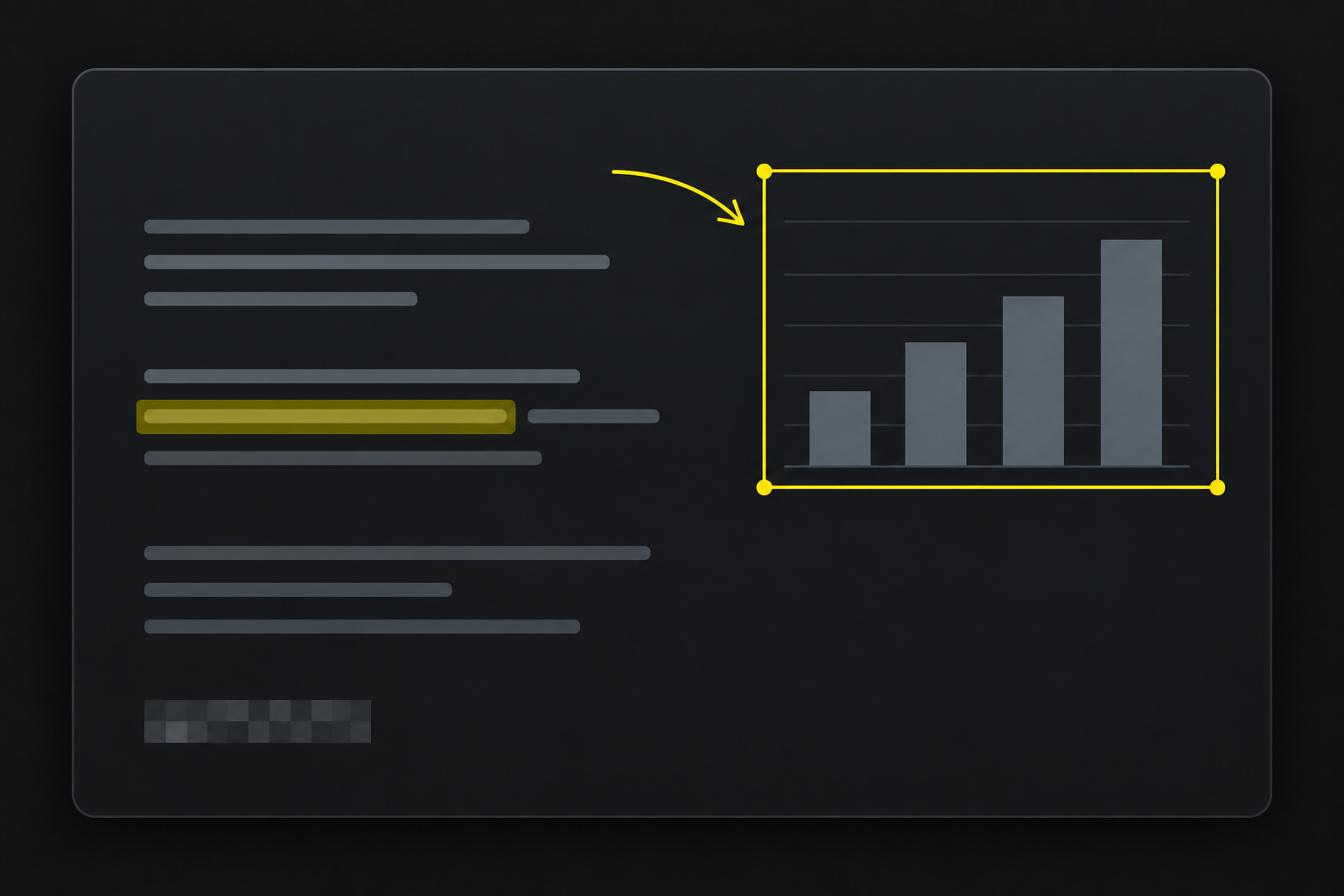
Shotta product visual: a dark glass editor window with a yellow selection region

01 — CAPTURE

Capture exactly
what you need.

Start from the menu bar or a keyboard shortcut.
Use Space to switch modes, or press Esc whenever you want to cancel.

01

Full screen

Capture an entire display, even when you use more than one monitor.

02

Region

Drag out exactly the area you need, even across screen edges.

03

Window

Select the window under your pointer with a single click.

04

UI element

Capture a visible button, field, list, or other interface element.

02 — MARK UP

Once you've captured it,
you're halfway done explaining.

Add a note where it matters and hide anything sensitive. Copy text directly from an image, or pick up an earlier capture from your history.

Copy to clipboardSave as PNGCapture history
Shapes and arrows
Pen and highlighter
Text
Crop
Blur and mosaic
Live Text

03 — PRIVATE BY DEFAULT

Your screenshotsstay on your Mac.

Capturing, editing, and text recognition all happen on your Mac. No sign-in, no upload, no tracking.

No uploads

Captures and edits are never sent to the cloud.

No tracking

No telemetry, no analytics SDKs, no crash reporting bundled in.

On-device recognition

Live Text runs inside macOS system frameworks on your machine.

04 — SHORTCUTS

Stay in the flow
with shortcuts.

Use the default shortcuts to capture and edit without reaching for the mouse.

Start a capture

Default global shortcuts — you can change these in Shotta Settings.

Capture a full screen
⌃ ⌥ ⇧ 3
Capture a selected area
⌃ ⌥ ⇧ 4
Capture a window
⌃ ⌥ ⇧ 5
Capture a UI element
⌃ ⌥ ⇧ 6

Edit faster

Rectangle · oval · arrow · line
R · O · A · L
Pen · highlighter · text
D · H · T
Crop · blur
C · B
Copy · save
⌘ C · ⌘ S
Undo · redo
⌘ Z · ⌘ ⇧ Z
Zoom in · out · reset view
⌘ + · ⌘ − · Space
Delete selection · cancel · apply crop
Delete · Esc · Return

05 — FAQ

Before your first
screenshot.

The current build is not notarized by Apple. Here is the usual one-time macOS setup, plus answers to common questions.

macOS says Shotta cannot be opened. What should I do?

Move Shotta.app to Applications, then Control-click the app in Finder and choose Open. Confirm Open once more in the dialog. This is the usual way to approve a downloaded app you trust; you only need to do it once for this build.

I cannot find the Open option in Finder.

Try opening the app normally once. Then go to System Settings → Privacy & Security, scroll to Security, and choose Open Anyway next to the Shotta message. Confirm Open when macOS asks again.

Why does macOS show this warning?

This build has not been notarized by Apple, so Gatekeeper asks for your explicit approval before the first launch. The warning is about the distribution status, not a request to disable macOS security globally.

What Mac do I need?

Shotta currently requires macOS 26 or later on an Apple Silicon Mac. It runs from the menu bar after the first-launch approval.